

Treat Ungraded Items as 0
By default, Brightspace will drop ungraded items from your students’ Final Calculated Grade. This is equivalent to the “Calculate as Running Total” option for the Weighted Total grade on Blackboard. This is designed to give your students a sense of what their final grade will be as the semester progresses, based on the work they’ve submitted so far.
Ungraded (and unsubmitted) work will not be factored into their Final Calculated Grade automatically.
At the end of the semester, once your students have submitted all their work, and you’ve graded all their work, you will want to change this setting to Treat Ungraded Items as 0. This will ensure that missing items are factored correctly into your students’ Final Calculated Grade. While looking at your Grade Book, you can change this setting by selecting Settings > Calculation Options > Grade Calculations: Ungraded Items: Treat ungraded items as 0:

Release Final Grades
Once you’ve configured your Grade Book to “Treat ungraded items as 0,” you may want to release the Final Calculated Grade to your students. This will allow your students to see what their final grade for the course will be before you submit your grades on CUNYfirst, giving them the opportunity to bring any errors to your attention or to submit any missing work.
To release the Final Calculated Grade to your students, find the Final Calculated Grade in your Grade Book at the left-most or right-most side of your Grade Book. Click the downward pointing arrow next to the Final Calculated Grade column header, select “Enter Grades,” and then click the downward pointing arrow next to the Final Grades page heading and select “Release All”:
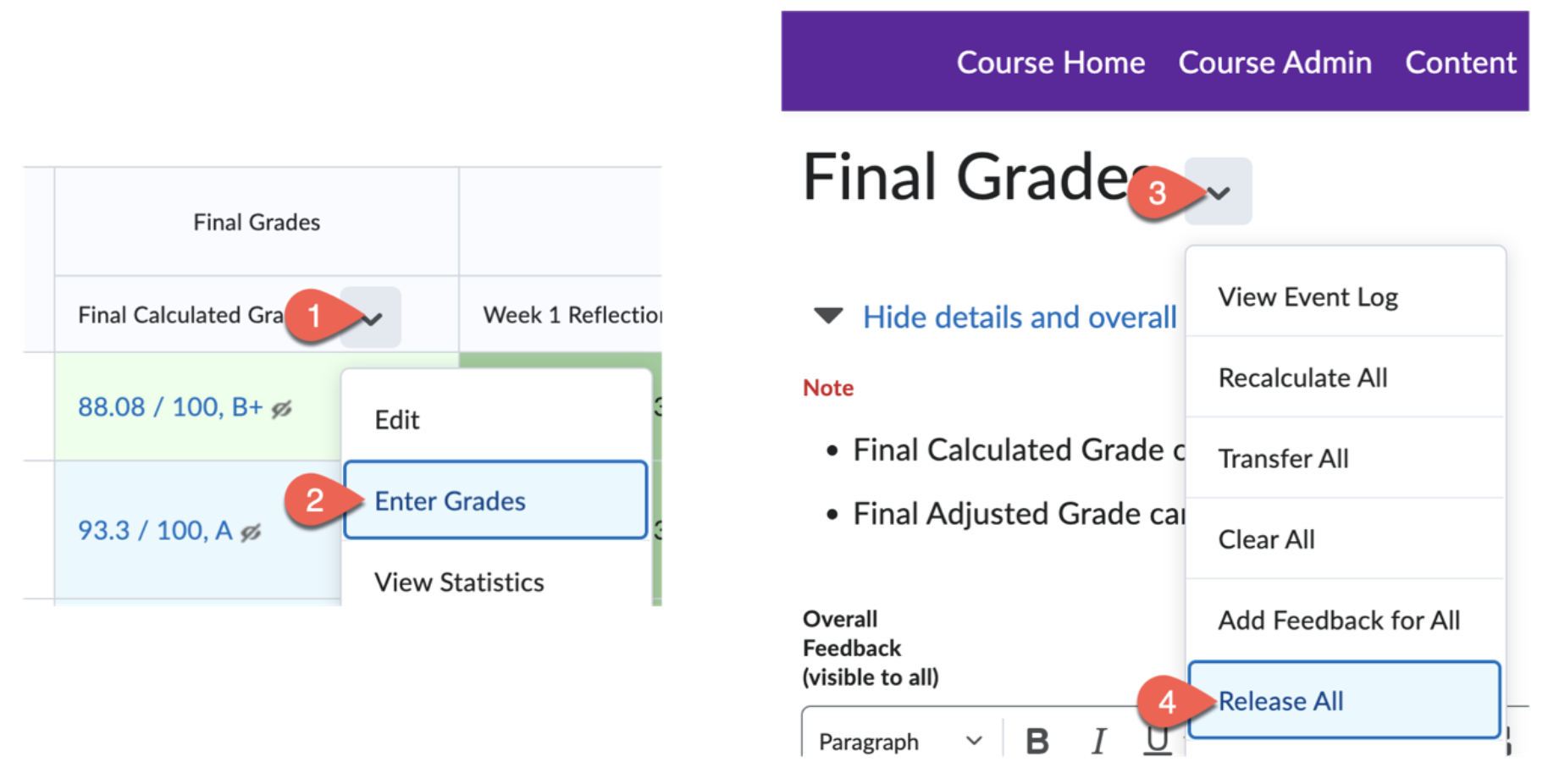
Once you confirm, your students will receive a notification that their Final Calculated Grade has been released.
Grade Passback to CUNYfirst
Starting this past Spring semester, the CUNYfirst Grade Roster now allows you to import the Final Calculated Grade directly from Brightspace. To use this feature, simply open the Grade Roster for your course and click the “Import Grades from Brightspace” button:
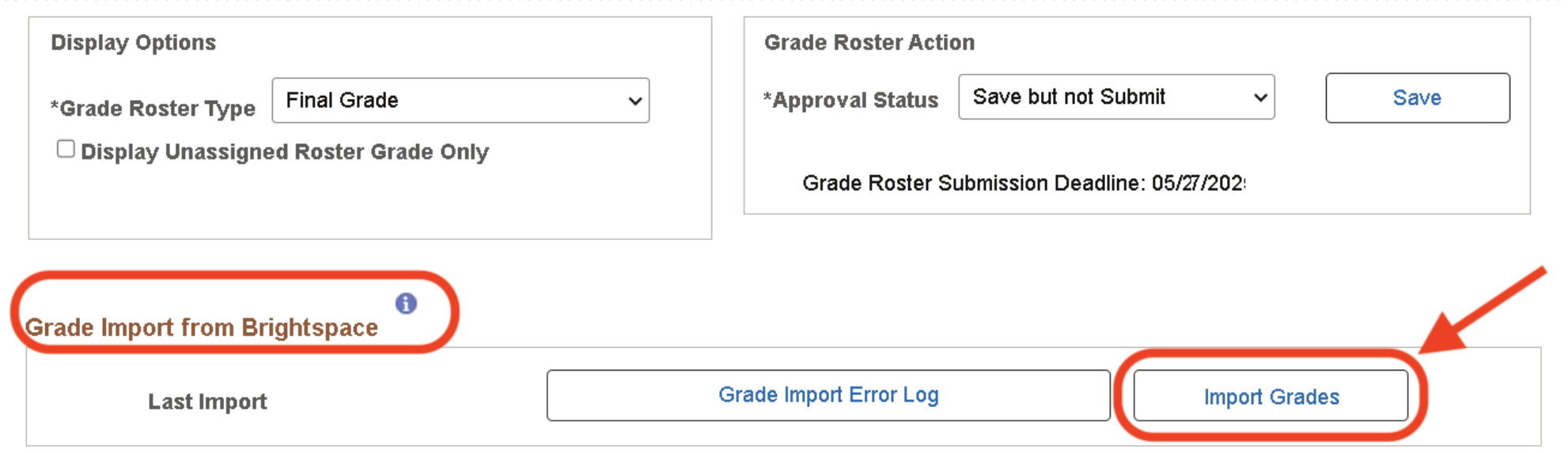
CUNYfirst will pull the Final Calculated Grade from Brightspace and fill in the Roster Grade dropdown menu for each of your students. This will work whether or not you’ve released the Final Calculated Grade to your students on Brightspace. You can make any changes to the grades you’d like, or assign a WU or INC grade, to individual students before submitting your final grades to the Registrar.
While this feature works for most courses, it may not work for some merged courses. In those cases, final grades need to be exported from Brightspace and imported into CUNYfirst, or entered manually.
My colleagues and I at the Center for Digital Learning & Innovative Pedagogy are available for consultations up to and including the final day to submit your grades, December 29th. If you have any questions or need any help getting your final grades ready in Brightspace, please schedule a consultation with us! You can also email us at edtech@hunter.cuny.edu.
Justin Tricarico
Instructional Designer & Media Specialist
Center for Digital Learning & Innovative Pedagogy


Comments are closed.